

Subtitles and On-Screen Text: Make Your Videos More Accessible
Subtitles make videos clear. Learn how to add text so your audience fully understands your content.
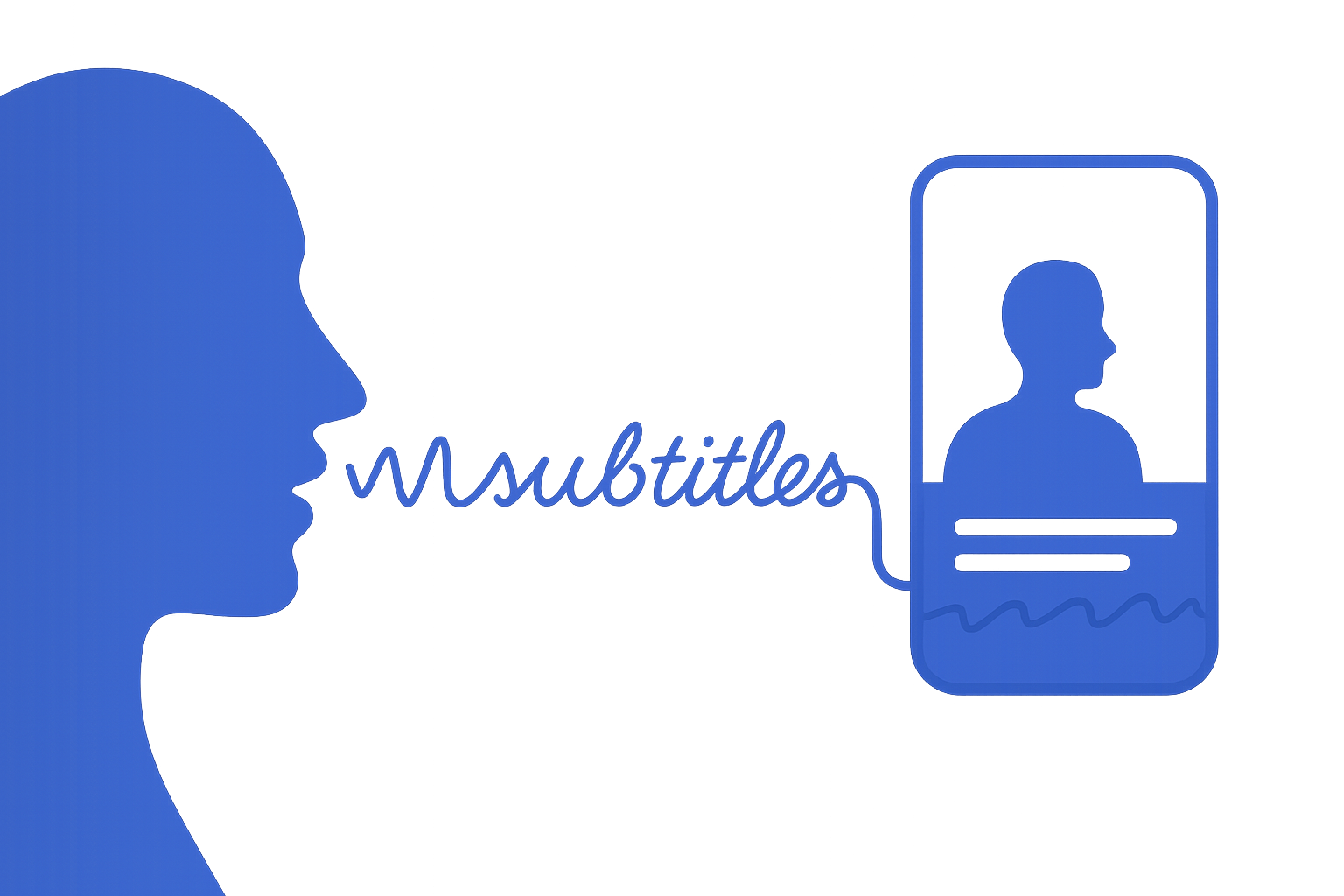
Many people today watch videos without sound: while commuting, at work, or simply out of habit. Because of this, captions and on-screen text have become a core part of video content rather than just an extra feature.
Text adds more than just clarity. It improves comfort, engagement, and accessibility. Subtitles make it easier for visual learners, people with hearing difficulties, and anyone watching in a noisy environment to enjoy your content.
When your audience speaks different languages, captions can act as a bridge. A short translation or a few highlighted phrases often make content easier to understand and connect with.
💬 Types of Subtitles
Quick Highlights Short text fragments that emphasize keywords or emotions. Useful for guiding attention and setting the rhythm of your video.
Full Transcriptions A complete version of everything spoken on-screen. Perfect for interviews, tutorials, and content with a lot of dialogue.
Translations Adding translations for key lines or phrases helps make content clearer for multilingual or global audiences, even when the main video language stays the same.
👀 How to Make Text Clear and Easy to Read
✅ Size Choose a font size that’s comfortable to read on mobile devices. Avoid small, cramped text, especially when it contains important information.
✅ Contrast Ensure the text stands out from the background. A reliable choice is white letters on a semi-transparent dark bar. On complex backgrounds, add a slight shadow or outline for extra readability.
✅ Font Limit yourself to one or two simple sans-serif fonts. Overly decorative styles might look attractive but are harder to read quickly.
✅ Timing When matching text to speech, show it just before the words are spoken. This gives viewers a moment to read ahead, which is especially helpful in fast-paced videos or with short phrases.
✅ Spelling and Grammar Mistakes are very noticeable when there’s only a small amount of text on screen. Always proofread carefully before publishing.
🧭 Best Placement for Subtitles
Bottom third of the screen - the standard placement. It’s familiar to viewers and keeps visuals clear.
Avoid the center. Faces, expressions, and actions should stay visible, without being blocked by text.
Keep away from edges. Some apps or screens may crop corners, so leave a safe margin around your text.
Think about composition. If you often use logos, titles, or lower-third graphics, move the text slightly higher without covering important visual elements.
🧠 Extra Tips
Mini titles inside your video Help viewers follow the structure by breaking content into sections. This works well in tutorials and storytelling formats.
Integrate text into storytelling Key words or emotional accents can be shown visually, not just spoken aloud.
Subtle calls to action Phrases like “Subscribe” or “Watch Next” can be woven into the design so they guide viewers without disrupting the mood.
💜 Why It Matters
Captions and on-screen text make videos clearer, more accessible, and more engaging. This is especially useful on Polee.me, where people may watch in different environments: sometimes silently, sometimes with distractions around them.
Even a small piece of text can make your video feel more personal and inclusive, whether for multilingual viewers or those who simply prefer to watch without sound.
By using subtitles, you go beyond delivering information you create a better experience for your audience.